
BD Alaris™ Plus Editor
Amended installation procedures to ensure software compatibility with Windows 11
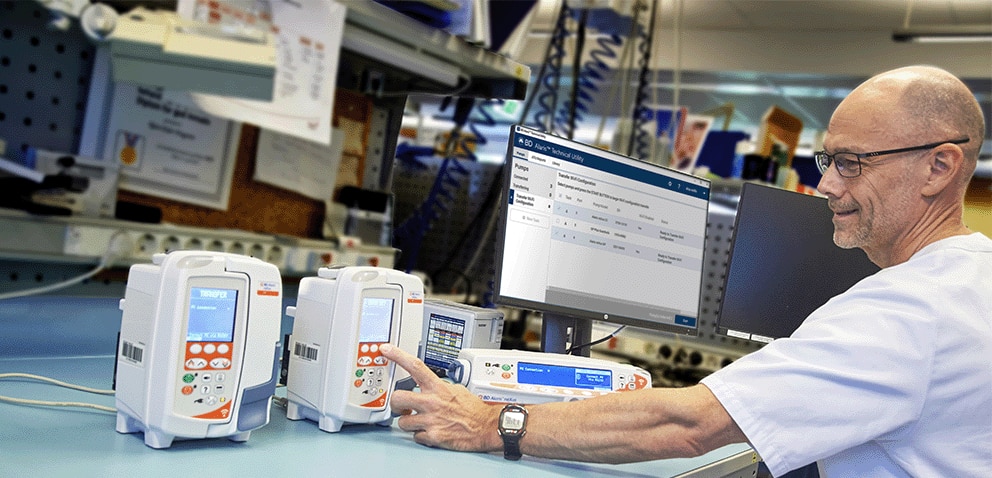
The BD Alaris™ Plus Editor is a PC‑based application that allows hospitals to develop and manage IV medication dosing guidelines and configure infusion pump settings for the Alaris™ Plus and Alaris™ Plus Guardrails™.

If you are using Windows 10, you do not need to perform these additional steps. The BD Alaris™ Plus Editor v4.5 will install normally using the CD provided.
This page describes the amended installation procedures for the BD Alaris™ Plus Editor compatibility with Windows 11.
To ensure the Plus Editor works properly on Windows 11, follow these steps:
- Download the installation image (Windows 11 Prerequisites for Plus Editor v1.iso) using the link below.
- Mount the ISO image and install the updated components required for Windows 11.
- Use the original BD Alaris™ Plus Editor v4.5 Software CD (part no. 1000SP02193) to install the application on
Windows 11.
Note: By using the installer you accept Microsoft SQL Server 2022 Express licence terms and confirm you possess a valid Microsoft Windows 11 licence.
1. Close all programs before beginning the installation.
2. Double-click on Windows 11 Prerequisites for Plus Editor. The installation process will start automatically.
3. Command Prompt window with Installing the prerequisites... and Installing SQL Server Express 2022... messages will appear.
4. If a User Account Control message is displayed, click Yes to install Microsoft SQL Server 2022 Express. SQL Server Express installation will commence.
5. If a User Account Control message is displayed, click Yes to install Microsoft SQLXML 3 SP2. SQLXML installation will commence.
6. SQL Server Express installation will proceed automatically.
7. After completion, insert the Plus Editor CD into the CD-ROM drive. AutoPlay prompt should appear asking to choose what happens to the inserted disk. Click on the displayed prompt.
8. In the Choose what to do with this disc window, click on Click to Install option..
Note: If the install program does not start, browse to the setup.exe on the installation CD. Double-click to launch the installation.
9. If a User Account Control message is displayed, click Yes to install BD AlarisTM Plus Editor 4.5. Plus Editor installation will commence.
10. On the Install Welcome dialog box, click Next.
11. On the Licence Agreement dialog box, read and accept the licence agreement, select radio button to confirm and click Next to proceed.
12. On the Setup Type dialog box, select a setup type. A Complete install installs the Plus Editor, the Plus Transfer Tool, the
Plus Report Viewer and the Plus Verification Tool. If a Custom install has been selected, there are two installation options available in the next step. The Pharmacist install is equivalent to a Complete install and installs the Plus Editor, the Plus Transfer Tool, the Plus Report Viewer and the Plus Verification Tool. The Biomed install only installs the Plus Transfer Tool, the Plus Report Viewer and the Plus Verification Tool. Click Next to confirm the setup type.
13. On the Ready to Install the Program dialog box, click Install.
14. On the Install Complete dialog box, click Finish.
Note: Do not use the # $ % ^ characters when specifying the installation path.
Note: During initial installation the application may appear to stop and will not react for 1 to 2 minutes. During this period the software is decompressing the files required to complete the installation.
The Windows 11 Prerequisites for Plus Editor .iso file is free for download, but a username and password are required.
For further details, contact your local BD representative.
