
Windows 11 installation instructions
Technical Utility For maintaining and servicing BD Alaris™ neXus and Alaris™ pumps
Download SQL Server 2022 Express
1. Download SQL Server 2022 Express from https://www.microsoft.com/en-us/download/details.aspx?id=104781
2. Double-click on the downloaded installer (SQL2022-SSEI-Expr.exe) to launch it.
3. In the Window displayed select Download Media:

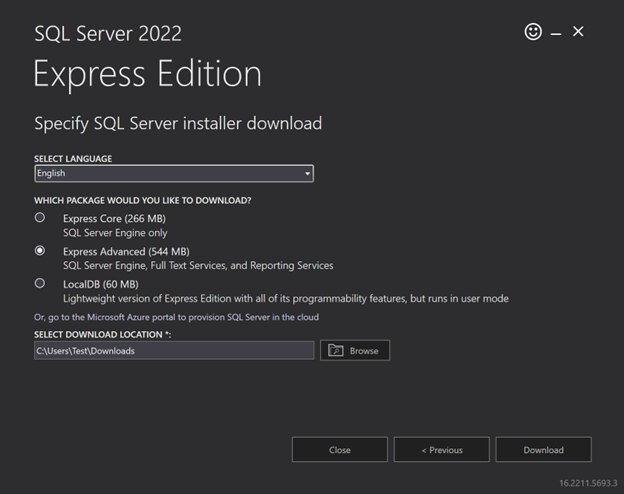
4. At the next prompt, select English as the language and Express Advanced package. Adjust download location if necessary.
Click Download to start the download process:
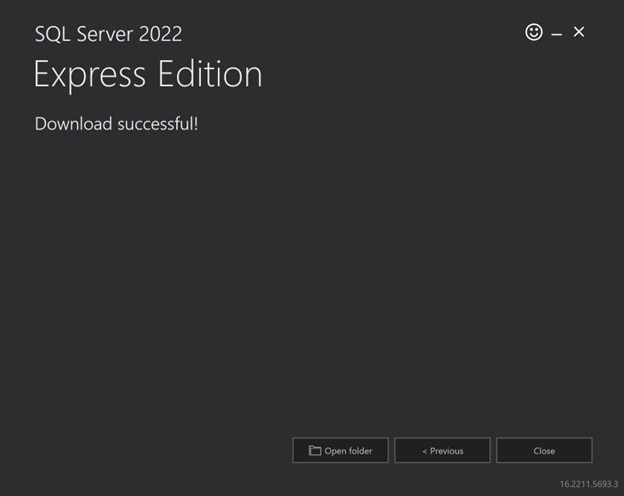
5. A progress bar appears indicating the download progress. Once download is complete a prompt is displayed, indicating successful download.
Click Open Folder:
Install SQL Server 2022 Express
1. Double-click the downloaded SQLEXPRADV_x64_ENU.exe to launch the installation.
If prompted by User Account Control (UAC), click Yes:

2. In the Choose Directory for Extracted Files window, click OK.
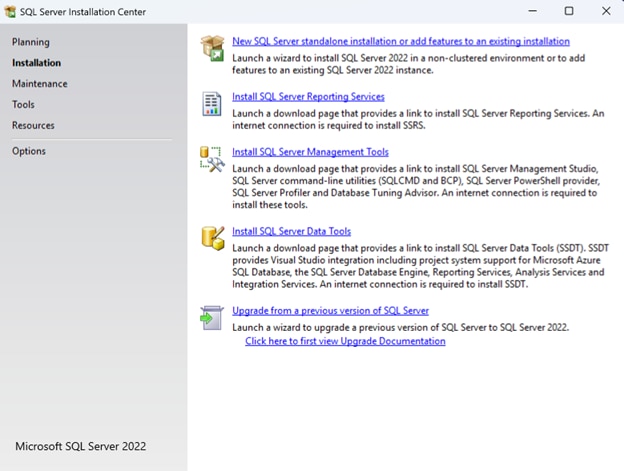
3. In the SQL Server Installation Center window, click New SQL Server standalone installation or add features to an existing installation:
4. In the License Terms window, tick the ‘I accept the license terms and Privacy Statement’ box and click Next.
5. In the Microsoft Update window, clear or check the ‘Use Microsoft Update to check for updates’ checkbox according local policy and click Next.
6. In the Install Rules window, click Next.
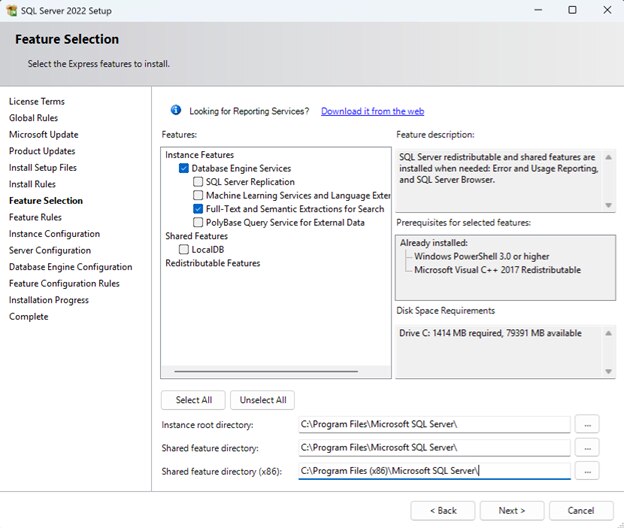
7. In the Feature Selection window, turn on the checkboxes for ‘Database Engine Services’ and ‘Full-Text and Semantic Extractions for Search’ and click Next:
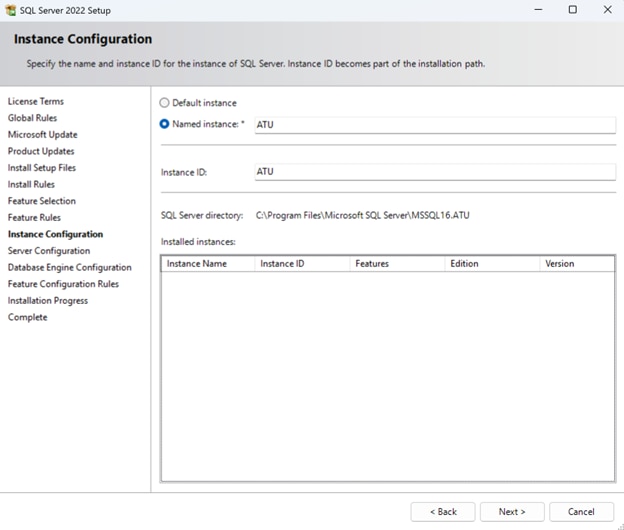
8. In the Instance Configuration window, enter ATU as the instance name and click Next:
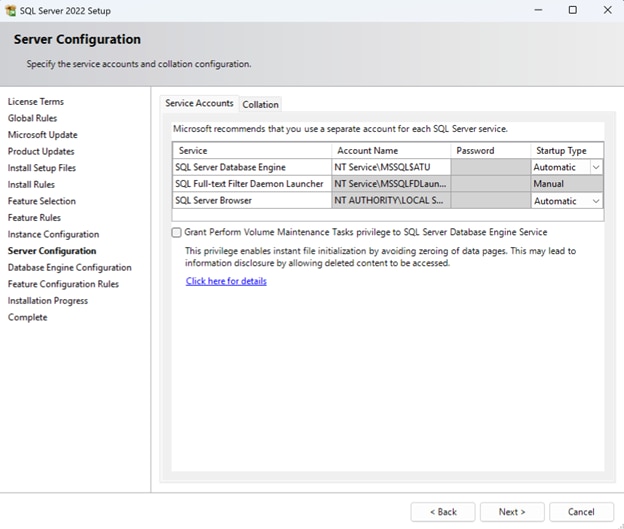
9. In the Server Configuration window, select a startup type of Automatic for SQL Server Browser from the pull-down menu and click Next:
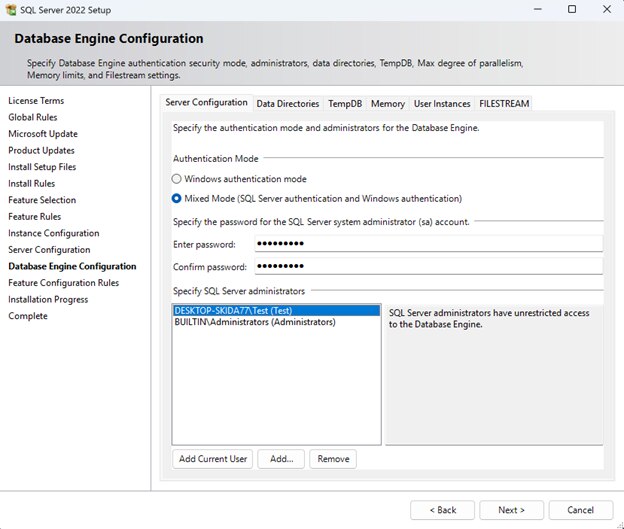
10. In the Database Engine Configuration window, select Mixed Mode authentication and enter the desired password.
Note: Take note of the password as it will be required for ATU application configuration.
Make sure BUILTIN\Administrators group are added as the SQL Server administrators.
Click Next.
11. An installation progress window will appear. Wait for the installation to be completed.
12. In the Complete window, click Close:

13. Mount ATU ISO image and launch ATU – Setup.exe. If prompted by UAC, click Yes:

14. In the Welcome window, click Next.
15. In the License Agreement window, read the EULA, select ‘I accept the terms in the license agreement’ and click Next.
16. In the Default Language window, select the desired language and click Next.
17. In the Database Installation Mode, select ‘Install ATU on an existing SQL Server instance’ and click Next:

18. In the Database Server window:
- Leave (local)\ATU unchanged.
- Select ‘Server authentication using the Login ID and password below’.
- Leave the Login ID as ‘sa’. Enter the password noted in step 10 and click Next:

19. In the Ready to Install the Program window, click Next. Wait for the installation to complete.
20. In the Install Complete window, click Finish.
